

Prerequisites
- A WoopSocial account
- A connected social media account on WoopSocial
- Access to the AI Agent/AI Chat/CLI you want to configure
Select your AI tool or Agent
Claude Chat / Cowork
- Grab your MCP link from your API Key Page
- Make sure you have at least one social media account connected (Connect accounts in your dashboard)
- Then go to your Claude app
- Go to Settings in Claude → Connectors → Customize
- Click Add Connector → Add Custom Connector
- Name it ‘woopsocial’ and use https://api.woopsocial.com/mcp as the URL
- Click Add and Authorize on the next page
- Start a new Chat in Claude → Ask it to write a test post to your social account for tomorrow
- It will find your Project ID and Social Account ID and will schedule a test post for tomorrow
- If you want, you can delete the post straight away
*.cloudflarestorage.com(including the asterisk/star)
Issues? Just use the chat button in the bottom right and we’ll help you out.
Claude Code CLI
Use theclaude mcp add command to register WoopSocial with Claude Code.
- Ensure that you have a WoopSocial account and you are logged in
- Connect a social media account through your WoopSocial dashboard
- Start
claude - In Claude, type
/mcp - Select the
woopsocial · △ needs authenticationmenu item - Select
Authenticate - This should take you to WoopSocial where you can Authorize the MCP connection. Click the “Authorize” button.
- Return to Claude
- Ask Claude to do something with the MCP. For example tell it to “List my social accounts in woopsocial” or “Create a new post for my Facebook account and schedule it for tomorrow 1pm”
Codex CLI
- Ensure that you have a WoopSocial account and you are logged in
- Connect a social media account through your WoopSocial dashboard
- Use the
codex mcp addcommand to register WoopSocial with Codex.
- This should take you to WoopSocial where you can Authorize the MCP connection. Click the “Authorize” button.
- Ask Codex to do something with the MCP. For example tell it to “List my social accounts in woopsocial” or “Create a new post for my Facebook account and schedule it for tomorrow 1pm”
Get your MCP URL for other AI agents
Claude Code above used our OAuth-based MCP authentication but this is not yet compatible with all AI agents. In such cases, please follow the procedure below which will generate an MCP URL for you backed by an API key.- Open the WoopSocial dashboard API page.
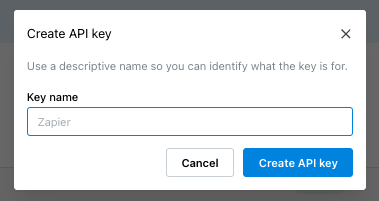
- Click on the “Create API key” button.
- Give the key a name so you can identify it later.
- Copy the MCP URL from the key details page.
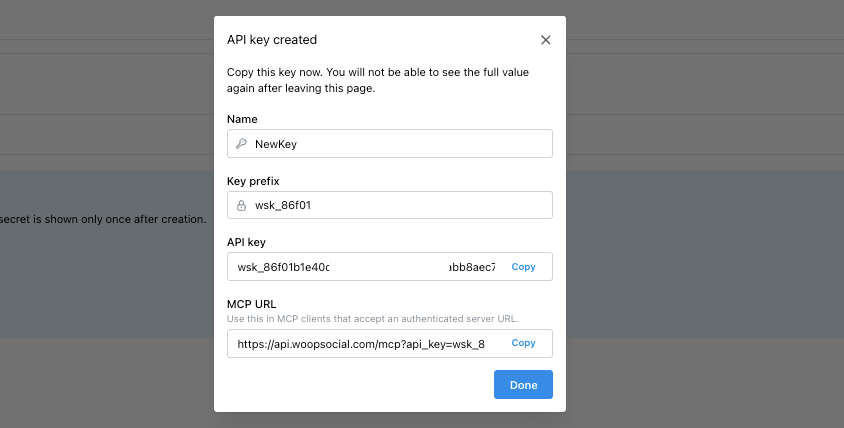 The MCP URL uses this format:
- Make sure you have at least one social media account connected (Connect accounts in your dashboard)
- Return to your AI agent
- Ask your AI agent to do something with the MCP. For example tell it to “List my social accounts in woopsocial” or “Create a new post for my Facebook account and schedule it for tomorrow 1pm”
ChatGPT
- Grab your MCP link from your API Key Page
- Make sure you have at least one social media account connected (Connect accounts in your dashboard)
- Now go to your ChatGPT dashboard
- Open
Settings.
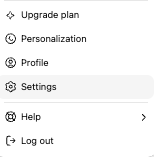
- Open
Apps. - Enable
Developer Modeif it is not already enabled.
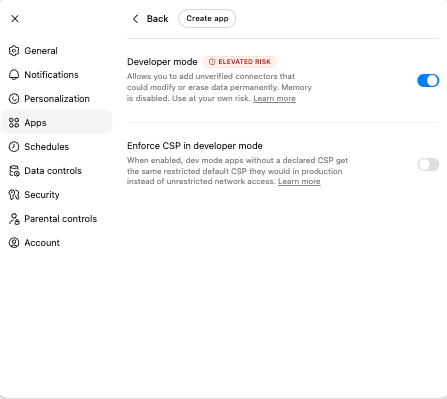
- Select
Create App. - Enter these values:
- Name:
WoopSocial - Description:
Publish social media content - MCP Server URL: paste the MCP URL you copied earlier
- Authentication:
No Auth
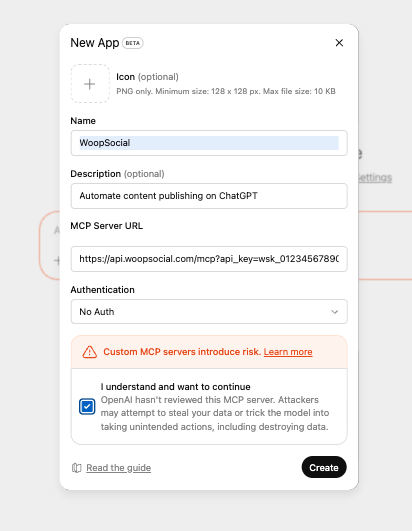
- Save the app.
- Return to ChatGPT and start a new chat
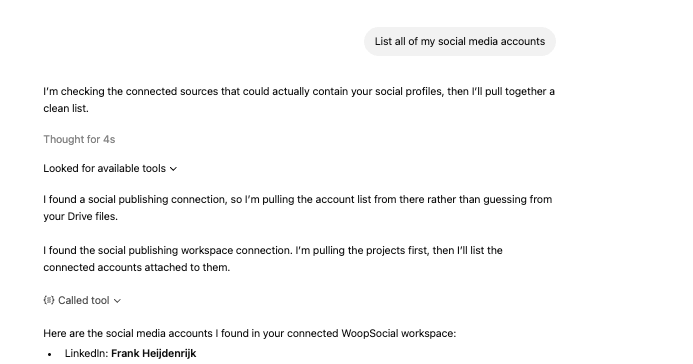
- Ask ChatGPT to do something with the MCP. For example tell it to “List my social accounts in woopsocial” or “Create a new post for my Facebook account and schedule it for tomorrow 1pm”
 Issues? Just use the chat button in the bottom right and we’ll help you out.
Notion
- Grab your MCP link from your API Key Page
- Make sure you have at least one social media account connected (Connect accounts in your dashboard)
- Now go to your Notion dashboard
- Go to Settings → Connections → + Add Custom MCP
- Enter your unique MCP Server URL (from step 1) and name it “woopSocial”
- Click Connect and complete the OAuth flow
- Ask the chat to “Find my project ID and find my social account IDs with the Woopsocial tools. Then schedule a test post for tomorrow”
- Delete the test post and start creating your own content
Gemini CLI
- Grab your MCP link from your API Key Page
- Make sure you have at least one social media account connected (Connect accounts in your dashboard)
- Run:
gemini mcp add woopsocial npx -y mcp-remotehttps://api.woopsocial.com/mcp - Or
edit ~/.gemini/settings.json manuallyand add:
{ "mcpServers": { "woopsocial": { "command": "npx", "args": ["-y", "mcp-remote", "https://api.woopsocial.com/mcp"] } }} - Put the following prompt in Gemini: “Find my project ID and find my social account IDs with the Woopsocial tools. Then schedule a test post for tomorrow”
- Delete the test post and start creating your own content
Cursor
- Make sure you have at least one social media account connected (Connect accounts in your dashboard)
- Simply go to our official Cursor Directory Page
- Click “Add to Cursor”
- Run through the authorization sequence
- Put the following prompt in Cursor: “Find my project ID and find my social account IDs with the Woopsocial tools. Then schedule a test post for tomorrow”
- Delete the test post and start creating your own content
Media upload fix for Claude and ChatGPT
If the client has an allowlist for outbound domains, add*.cloudflarestorage.com so media uploads work.